Tuesday, 23 November 2021

TINY ELECTRONICS SHOPS

AKIHABARA HEAVEN

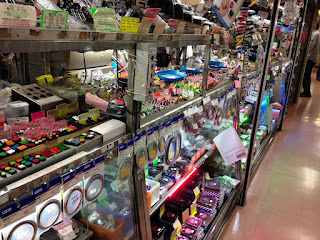
I saw a photo on QRZ.NOW which made me smile. Some photos just do that to you and you probably can't even explain why! Anyway, I discovered that this tiny little electronics store was in Tokyo - a place called Akihabara. I now want to go there 😂

Loading...

A quick Google revealed a few others in the area. This is one of the reasons that I simply must visit Japan before I die! Everything is crammed into tiny spaces and the place is bursting with colour and urban vibrancy.

And yet it also has so much natural beauty too. Hmmm, I'm saving up to go!


Thursday, 11 November 2021

IC-7610 EXTERNAL KEYPAD

EXTERNAL KEYPAD
FOR VOICE/CW MEMORIES

DIY EXTERNAL KEYPAD IC-7610 /  IC-705

All the latest Icom SDR transceivers have the facility to store a number of brief VOICE, CW, PSK or RTTY recordings to re-transmit at the push of an onscreen button. The biggest benefit of this facility is when you're participating in a competition and don't want to keep repeating your CQ Call over and over into a mic or through a key.


Depending on the mode you are in, a different set of buttons appear on screen. You may choose to record different messages in there such as...

T1... CQ CONTEST CQ CONTEST, THIS IS M7MCQ CALLING CQ AND STANDING BY

T2... CQ 20 CQ 20 CQ 20 THIS IS M7MCQ CALLING CQ AND STANDING BY

T3... CQ 17 CQ 17 CQ 17 THIS IS M7MCQ CALLING CQ AND STANDING BY

You get the idea! 😂 Pressing the on-screen button transmits the message once, but if you hold the button for a second, the transmission will go into a loop with a predetermined pause inbetween transmissions.

It's a great facility but the buttons take up a lot of screen space which makes your waterfall virtually redundant. The way around this is to buy or build an external 8-Button KeyPad that you can use instead of the screen buttons.  Such a keypad can be connected to a 3.5mm stereo socket on the back of the radio marked EXT KEYPAD. 

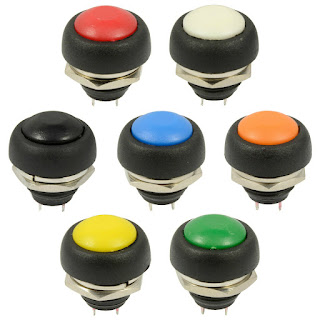
I decided to make my own keypad and ordered a suitable enclosure and buttons from an eBay seller. I also ordered a few resistors (values listed at end of the post). They were super cheap and quick to arrive. 

Now there's an advantage and a drawback to choosing a small enclosure - a small one will look real neat and will occupy very little space on your desktop (a big issue in my tiny shack). The disadvantage of a small case is that there is no room for any sort of labelling, so you pretty much have to remember what is stored in each of the 8 buttons.

That's not a massive issue for me because I have a small laminated card pinned to the wall, showing what's stored where. Once I've used the KeyPad for a couple of weeks, I'll no doubt edit it. 


Construction : The first job was to drill the 8 holes in the lid of the enclosure to match the diameter of the switches - 12mm in my case. I had chosen these particular buttons because I liked their domed appearance and the colour-coding. Initially, I tried a 12mm drill bit which immediately ripped into the lid and damaged it. Luckily, I'd bought two enclosures so I got out the other lid and this time I used a cone-cutter (often referred to as a step-drill-bit). This worked superbly.

The only thing I did wrong, was to drill by hand! I should have used a pillar drill because although I thought I was controlling it perfectly, it turned out that the drill bit was moving slightly and as a result, the buttons are not perfectly spaced 😡. Ah well, I know for the next time.


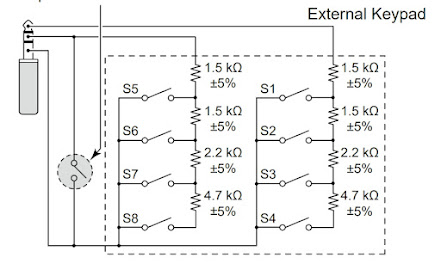
Once drilled, it was a simple case of fitting all the buttons, being careful to align the terminals in a way that assisted the insertion of the resistors. The circuit diagram is listed in the Basic Manual of the IC-7610 (Section 13-4) and it's very easy to understand even for a dummy like me...

Circuit diagram for the IC-7610

I was going to leave out that ninth switch (shown on the left of the diagram) - it's there to act as a Mute button and I just didn't think it was useful enough to include, but in the end I chose to tag it onto the end of the enclosure. CAUTION: I noticed in the IC-705 diagram, it does not have the mute facility, so if you're building this external keypad for that radio alone, it's best to leave it out (although I'm not really sure what would happen if you left it in and pressed it) 💥💥

And if you wish to make one of these for the IC-7300, then you only need to make half of the circuit, since the 7300 only has four memory buttons. The connection to the radio is via the Mic connector (much less convenient)...


As you can see from the images, it's just a case of connecting one side of each bank of switches with the correct value resistor and the other side with a continuous connecting wire. Then you simply connect up the wires directly to the jack plug or (as I preferred) to a 3.5mm socket.  Because the small socket was reliant on a very small ring-nut to hold it in place, I decided to provide additional stability with a Hot Glue Gun just to be on the safe side. 

>>> NOTE THE MISTAKE <<<
The red wire is soldered on the wrong side of the switch
which resulted in an inoperative unit, LOL.
Quick swap-over sorted it out.

Putting the resistors in place made me realise that the case was indeed very compact! There was little room for the last two (the 1.5Ks) so I had no choice but to bend them back on themselves and locate them in the centre of the switches. Since there was no reference to the required wattage in the circuit diagram, I bought 2W resistors and I could probably have got away with much smaller 0.5W instead 😳. 

I'm not very good at this sort of stuff, but it worked out in the end anyway. The rest of the job is very simple and straightforward and the end result looks pretty good. I just might do another one to keep in my IC-705 rucksack (and this time I'll drill correctly and use small resistors).


This was a very simple little project which was fun to make and is a very useful addition to the shack.

Thanks for visiting the Blog. Feel free to leave a comment below.

73, Tom, M7MCQ.


COMPONENT LIST

4 X 1.5Kohm  +/-5%

2 X 2.2Kohm  +/-5%

2 X 4.7Kohm  +/-5%

1 x 3.5mm Stereo Socket

1 X 12V Latching Push Button (optional mute switch)

8 X 12V Momentary Push Buttons (whatever you have)

1 x Enclosure Box (100x51x22mm is what I used)


Sunday, 7 November 2021

ONE OF THOSE DAYS!!

WHEN EVERYTHING GOES WRONG.

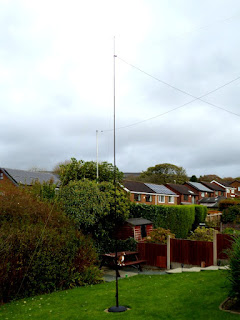
"Winter's coming", as they say in Winterfell. And for me, that means my gardener won't be around for a few months, which also means that I can erect temporary antennas on the lawn in the back garden and operate from a spacious conservatory instead of a cramped radio-shack. I've been looking forward to doing this and have been frustrated by the lousy weather these last few weekends. Today has been dry - very windy and very cold - but dry!

So I set out to first of all drill a hole in my conservatory wall to facilitate the antenna's coax. I was going to be drilling from the inside out, so I had to measure carefully to try and hit a mortar-line instead of the brick. I managed to do a pretty good job of it and then I fitted an enclosure.


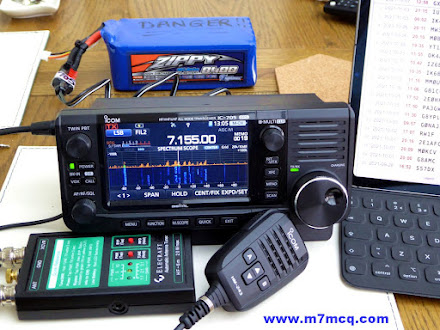
Once that was done, I got my Sotabeams telescopic 6M pole out and erected a "Band Springer" endfed wire which (with a tuner) covers 8 bands. Once everything was sorted, I connected the antenna to my Icom IC-705 indoors and attempted to tune with an Elecraft T1. To my shock and amazement, the little Elecraft couldn't tune it 😲

I went outside and checked everything. It all looked fine, so I took the radio outdoors and connected it directly to the antenna - with the same disappointing result. I decided to dismantle the BandSpringer antenna and replace it with my BandHopper Dipole. Sadly, I got the same miserable results when I plugged it into the 705.I started to think that there was something wrong with the radio and my patience was wearing thin, so I took it indoors and dug out my Icom IC-7100.

A few minutes later I had it connected to the antenna via an LDG IT-100 Tuner.  When I switched the radio on, I noticed that the red LED on the tuner was flickering intermittently. I pressed the TUNE button and the radio switched off 😡

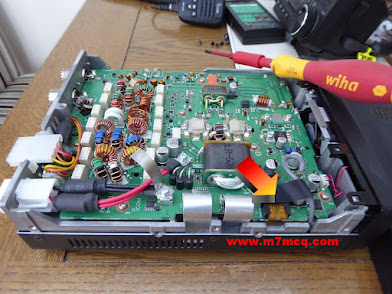
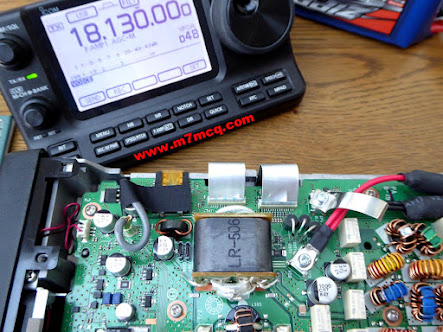
OMG, I could do without this! What the hell is going on?? I checked the inline fuses and they were fine, so I had no choice but to open up the radio and see if there was a fuse inside that had blown. Sure enough, there was a 5A mini-blade fuse which had gone kaput.


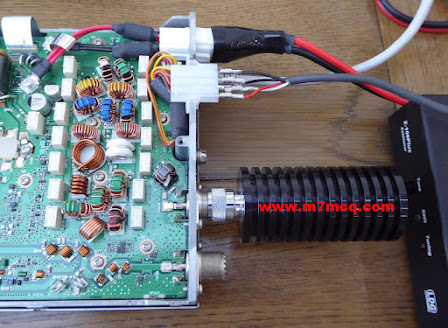
I replaced the fuse and tried to figure out why it had blown in the first place. It was obviously linked to the tuning procedure that I'd initiated, so I looked at the interface lead. Much to my amazement, all four leads going into the Molex connector were hanging out!!

Whoever it was at Icom who decided it was a good idea to use Molex connectors, wants shooting! They are a pathetic design and I'd like to see them banned from radios. Anyway, my very first problem was that all the wires had come out from the connector and I hadn't got a clue which wire went where.

I removed the Molex from the back of my IC-7610 but unfortunately it had different colour coding. In the absence of any other ideas, I got my multi-meter and determined which wires went to which part of the TRS and Power Jack and used my best judgement to decide how to wire it. 

Because I didn't have a spare Molex connector, I had to figure out how to remove the pins and and then had to try to 'uncrimp' the bottom of the pins so I could re-use them. Needless to say, one of the pins snapped in half because it didn't want me to have an easy time of it 😭😭😭

After a lot of cussing, I managed to get the four wires reconnected to the pins and then soldered them in place. Before pushing them back into the connector, I test-fitted them into the back of the IC-7100 to see if I'd got the wiring config right.

 
Thankfully, I'd got it right, so I pushed the pins into the Molex and all was well with the world again! Connecting the outdoor antenna resulted in a fully functioning radio and atu.

 
So now I was left with the strange problem of the Elecraft being unable to tune the antenna when connected to the IC-705. I put the 7100 away and connected the 705 again. Pressing the Tune button on the Elecraft produced a few seconds of relay chatter followed by a green LED indicating a perfect match 😲

I have  NO IDEA why it was now suddenly working and I didn't give a damn either - I was just glad that it was! I shook my head and started to make some contacts.


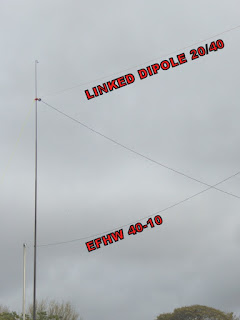
The SotaBeams BandHopper Linked Dipole was working well. It was oriented toward North America and I had closed the links so that it was resonant on 40M. The tuner would take care of 20M. In fact, both the Elecraft and the LDG had no trouble at all tuning from 80 to 10m (including the WARC bands) 💪.

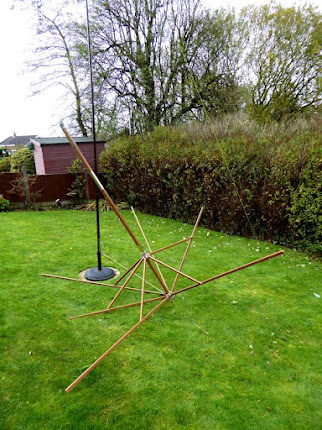
So there we have it. I've got the IC-7610 in the shack connected to a good EFHW and can use the IC-705 or IC-7100 in the conservatory. Happy days. The wife thinks I've got enough antennas up and is wondering what I'm going to be doing with our old parasol. Hmmm 😏


Thanks for visiting. Please feel free to leave a comment below.

73, Tom, M7MCQ.

Friday, 29 October 2021

ICOM IC-7610 REWIND

OOPS! I DID IT AGAIN!

Without any doubt at all, the best radio I have owned is the ICOM IC-7610. But the grass is always greener and so even though I loved my IC-7610, I thought there might be something better out there. I purchased a YAESU FT-DX101D and really disliked it. 

Obviously, it was a magnificent transceiver (as they all are at this price level), but I just couldn't believe how annoying it was to work with. No point going on about it - just read the review and see for yourself. It obviously suits a lot of people - but it didn't suit me. After that I invested in a bit of Russian technology in the form of an Expert Electronics MB1 Prime. Again, a fabulous radio, but I hit a problem which led to me returning it and getting my money back.

For a very short time, I convinced myself that I didn't need a BIG radio in the shack because most of my radio-time was actually spent outdoors with my IC-705, so I ended up "making do" with a Yaesu FT-891 and my Icom IC-7100 for indoor play. To be fair, they’re both fabulous!! 

But I kept pining for my 7610. It had just done everything so well. Nothing at all annoyed me about it. I never felt that it was lacking in any way. And as is often the case, I kept seeing IC-7610's on the internet in Groups, Forums and Blogs, making me wish I had that happy feeling back. 😂

Well now I do! Because I've bought another one and (I know I've said this before) it's a keeper! Having first-hand knowledge of what's out there, I no longer need to look for the best - it's right here in my shack…

ICOM DREAM MACHINE

When I originally considered buying an IC-7610, I had looked at the FT-DX101D and came to these initial conclusions…

  • I hate the 101's chavvy 3D waterfall!
  • I dislike the 101's 2D waterfall.
  • I love the 101's overall appearance.
  • I love the 7610's progressive tuning.
  • I like the 7610's meter options.
  • I like the 7610's screen layout options.
  • I like the 101's 3 antenna ports.
  • I love the 7610's built-in network server.
  • I love the 7610's  4 USB ports.
  • I love the 7610's Remote Control capability.
  • I love the 7610's QSO recorder.
  • I like the 7610's compact dimensions
  • I like the 7610's TWIN CLOCKS (Local/UTC) (FT-101D has none!!)

I should have trusted my gut feeling about the 101, because having owned both radios I now know that the 7610 is the better radio for me. In fact, it’s becoming increasingly clearer that I have a strong preference for Icom’s way of doing things and find myself more and more at odds with Yaesu - especially with their newer products. 


No one can accuse me of bleating on about a product that I haven’t paid hard-earned cash for. I’ve forked out good money for them all and I look at them without any bias and without any favour. And I’d like to say that I’m not a blind ICOM ‘fan boy’.  I’m not a Yaesu hater too - I have had more Yaesu radios than any other make and I currently own four Yaesu!! 

18 Feb 2022 : I bought an LDG MC-7610 for the radio and it looks great. CLICK HERE to see.

I’m a very happy chappy and super excited having the 7610 back 😊

73, Tom, M7MCQ.

Thursday, 28 October 2021

ANDERSON POWER SPLITTER

 SILLY ME!

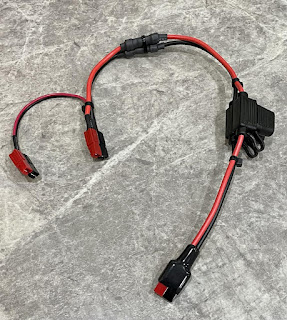
Earlier today, I almost bought a little Power Splitter and it was really quite expensive too. Then I got a grip of myself and realised that it made far more sense to just make a simple wire-splitter with Anderson PowerPole connectors.

The only reason I wanted one was for when I wanted to add an accessory to my LifePo battery while outdoors - perhaps a small ATU or a powered meter or maybe just something to put some charge into my phone for the hotspot. I didn’t need more than a single extra connection. 

While I was doing it. I decided to do it properly and make sure it was fitted with easy-change fuses.

Friday, 22 October 2021

RASPBERRY PI ~ HAM PI

HAM RADIO SOFTWARE SUITE
FOR YOUR RASPBERRY PI

HAM PI by W3DJS

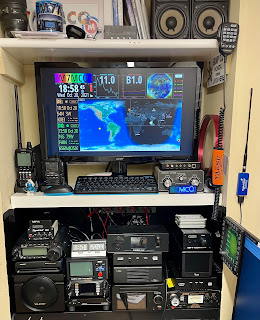
I have recently built a nice ham-radio-clock for the shack using an old computer monitor, a Raspberry Pi 3 and ClearSkyInstitute's amazing HAMCLOCK software. It's a very worthy addition to the shack and I recommend it to everyone.

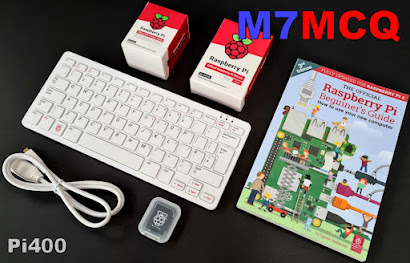
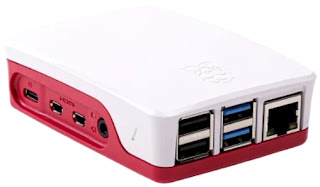
So with my little Pi3 tied up to that task, I purchased a used (but like brand new in the box) Model Pi400. Unlike the Pi3, this package came complete with everything you need (apart from a monitor) to have yourself a decent-spec home computer, including the keyboard, mouse, power-supply, leads, SDcard with operating system and even a comprehensive Guide Book. It's a self-contained unit with the Pi 'motherboard' built into a compact and attractive keyboard.

So what you have here is an extremely compact PC which you can use for running various tasks without tying up your main PC. And that's why I got this because it seems to me, that every time I want to use the big computer, it's already running some radio-related task. With the Pi400 and HamPi software, I can pretty much run everything I want in the shack - we'll see!


The specs are as follows....

  • Processor: Broadcom BCM2711 quad-core Cortex-A72 (ARM v8) 64-bit SoC @ 1.8GHz
     
  • RAM: 4GB LPDDR4-3200 
     
  • Connectivity: Dual-band (2.4GHz and 5.0GHz) IEEE 802.11b/g/n/ac Wireless LAN, Bluetooth 5.0, BLE Gigabit Ethernet 2 × USB 3.0 and 1 × USB 2.0 ports 
     
  • GPIO: Horizontal 40-pin GPIO header 
     
  • Video & Sound: 2 × micro HDMI ports (supports up to 4Kp60) 
     
  • Multimedia: 265 (4Kp60 decode) 264 (1080p60 decode, 1080p30 encode) OpenGL ES 3.0 graphics 
     
  • SD card support: MicroSD card slot for operating system and data storage 
     
  • Keyboard: 78- or 79-key compact keyboard (depending on regional variant) 
     
  • Power: 5V DC via USB-C connector 
     
  • Security: Security lock port 
     
  • Cooling: Large internal heatsink plate and underside vents Operating temperature: 0°C to +50°C 
     
  • Dimensions: 286 mm × 122 mm × 23 mm (maximum)
To make the Pi400 even better than it already is, you can download the software suite I mentioned above, which was designed purely for Ham Operators. It's a staggering collection of really useful apps called HamPi by W3DJS and it includes the HamClock mentioned at the top of the post. I doubt very much that I'll find a use for all the software (I don't even understand what half of it's for, lol) but there's definitely some stuff on there that will free up my Windows PC. And best of all, this package gives you lots to experiment with, and that's the big attraction of the hobby to me.


Conveniently, the HamPi software is downloadable as a 4Gb image which you simply transfer to a fresh SD Card and then insert into your Pi. Switch on and BOOM, all ready to go!

Here's a list of the Apps that are currently included in the package...


General Ham Radio Applications
==========================
HamLib - Ham Radio Control Libraries
grig - graphical user interface to the Ham Radio Control Libraries
CHIRP - Radio Programming Software
APRS Message App for JS8Call - GUI to send APRS messages via JS8Call
QTel - EchoLink client
QSSTV - Slow Scan TV (e.g. "Fax")
Gpredict - Satellite prediction
FreeDV - Free digital voice vocoder
BlueDV - Client for D-Star and DMR
WsprryPi - WSPR software
ADS-B Flight Tracking Software
Pi3/4 Stats Monitor - by W1HKJ
VOACAP - HF propagation prediction
GPS Support
Auto WiFi Hotspot - Automatically turn your Pi into a WiFi hotspot when in the field!
wxtoimg - NOAA weather imaging software
twHamQTH - an online callsign look up program
twclock - a world clock and automatic ID for amateur radio operators
acfax - Receive faxes using your radio and sound card
colrconv  -  convers client with sound and ncurses color support
D-Rats 0.3.9 (by new maintainer Maurizio Andreotti) - A communication tool for D-STAR
fbb - Packet radio mailbox and utilities
gcb - Utility to calculate long and short path to a location
glfer - Spectrogram display and QRSS keyer
Xdx is a DX-cluster client
DXSpider - DX Cluster Server
fccexam - Study tool for USA FCC commercial radio license exams.
gnuais / gnuaisgui - GNU Automatic Identification System receiver
hamexam - Study guide for USA FCC amateur radio (ham radio) license examinations.
hamfax - Qt based shortwave fax
inspectrum - tool for visualising captured radio signals
predict-gsat - Graphical Predict client
splat - analyze point-to-point terrestrial RF communication links
wwl - Calculates distance and azimuth between two Maidenhead locators
AX.25 – Packet Radio drivers for ax.25 protocol
linpac - terminal for packet radio with mail client
PyBOMBS - GNU Radio install management system
AMBEServer – AMBE vocoder chip support
HamClock – GUI HamClock by WBOEW
Adifmerg – command-line ADIF conversion utility
Lopora – QRSS Beacon Reception
Universal Ham Radio Remote (UHRR) – UHRR provides remote radio operation
RpiTx -- Turns Raspberry Pi into low power transmitter
ACARS Decoder – for tracking aircraft transponders
CygnusRFI – RFI analysis tool for ground stations and radio telescopes)
Update Scripts -- to update Fldigi suite and WSJT-X 
Radio Explorer - Displays shortwave radio broadcast schedules
OrssPiG - QRSSS (Raspberry) Pi Grabber
Minimodem - General purpose software audio FSK modem
Orca - Screen-reading software which supports blind hams
RBNC - Reverse Beacon Network Client
QDMR - a GUI application and command line tool to program DMR radios
wfview - a program to control modern Icom ham radios
DUDE-Star - RX/TX D-Star, DMR, Fusion YSF/FCS, NXDN, P25, M17, IAX (AllStar client)
Lady Heather - GPS Monitoring software
Cqrprop - Small application that displays propagation data from Paul, N0NBH website


Antenna Ham Radio Applications
===========================
antennavis - Antenna Visualization Software
Atlcl - Arbitrary Transmission Line Calculator
gsmc - A GTK Smith Chart Calculator for RF impedance matching
nec2c - Translation of the NEC2 FORTRAN source code to the C language
xnecview - NEC structure and gain pattern viewer
yagiuda - software to analyse performance of Yagi-Uda antennas


Digital Mode Ham Radio Applications
===============================
WSJT-X - Weak Signal (FT8, FT4, etc.) by W1JT
GridTracker - Graphical mapping companion program for WSJT-X or JTDX
JTDX - Alternate client for Weak Signal (FT8, FT4, etc.)
JS8Call - Messaging built on top of FT8 protocol by KN4CRD
JS8CallTools - Get Grid coordinates using GPS
(FLDigi is in its own section below.)
gnss-sdr - GLONASS satellite system Software Defined Receiver
linpsk - amateur radio PSK31/RTTY program via soundcard
multimon - multimon - program to decode radio transmissions
multimon-ng - digital radio transmission decoder
psk31lx - a terminal based ncurses program for psk31
twpsk - a psk program


Software Defined Radio
===================
CubicSDR - Software Defined Radio receiver
cutesdr - Simple demodulation and spectrum display program
GQRX - Software defined radio receiver
LeanSDR – Lightweight, portable software defined radio
SDR++ - Brand new cross-platform and open source SDR software
SDRAngel - SDR player
lysdr - Simple software-defined radio
SoapyAudio - Soapy SDR plugin for Audio devices
SoapyHackRF - SoapySDR HackRF module
SoapyMultiSDR - Multi-device support module for SoapySDR
SoapyNetSDR - Soapy SDR module for NetSDR protocol
SoapyRemote - Use any Soapy SDR remotely
SoapyRTLSDR - Soapy SDR module for RTL SDR USB dongle
SoapySDR - Vendor and platform neutral SDR support library
SoapySDRPlay3 - Soapy SDR module for SDRPlay3 API
Support for RTL-SDR
Support for SDRPlay SDR
Support for HackRF SDR
Support for AirSpy and AirSpy HF
SoapySDRAirSpy- Soapy SDR module for AirSpy SDR
SoapySDRFUNcube Dongle Pro+- Soapy SDR module for FUNCube Dongle Pro+
SoapySDRPlutoSDR- Soapy SDR module for Pluto SDR
SoapySDROsmoSDR- Soapy SDR module for Osmo SDR
SoapySDRRedPitaya- Soapy SDR module for Red Pitaya SDR
SoapyUHD- Soapy SDR module for Ettus ResearchUHD SDR
SoapySDRVOLKConverters - Support for VOLK-based type converters


APRS Applications
================
Xastir - APRS GUI client / Digipeater / Igate
YAAC - Yet Another APRS Client
DireWolf - Software "soundcard" AX.25 packet modem/TNC and APRS encoder/decoder
aprsdigi - digipeater for APRS
aprx - APRS Digipeater and iGate
soundmodem - Sound Card Amateur Packet Radio Modems


FLDigi Application Suite from W1HKJ
===============================
flrig - Rig Control program which interfaces with fldigi
fldigi - Digital Modes Communications
flaa - RigExpert Antenna Analyzer Control Program
flamp - File transmissions via Amateur Multicast Protocol
flarq - ARQ data transfer utility for fldigi
flcluster - Telnet client to remote DX Cluster Servers
fllog - Logbook application which can use same data file as fldigi
flmsg - Editor for ICS 213 Forms
flnet - Net Control Assistant for Net Activities (Check-In Application)
flpost - NBEMs post office
flwrap - File encapsulation and compression for transmission over amateur radio
flwkey - Winkeyer (or clone) control program for K1EL Winkeyer series


Logging Applications
==================
10 10 QSO Logger - Logging software for Ten Ten International Users
TrustedQSL - LotW client
CQRlog - Ham Radio Logging Application
PyQSO - Logging software (written in Python)
klog - The Ham Radio Logging program
tlf - console based ham radio contest logger
tucnak2 - VHF/UHF/SHF Hamradio contest log version 2
twlog - basic logging program for ham radio
upload_adif_log – Upload only new log entries to LotW, eQSL.cc and ClubLog
wsjtx_to_n3fjp - Logging adapter to allow WSJT-X to log to N3FJP
xlog - GTK+ Logging program for Hamradio Operators


WinLink Applications
==================
Pat WinLink - WinLink for Raspberry Pi (and other platforms)
ARDOP support for Pat WinLink
ARDOP-GUI - Provides graphical representation of ARDOP connections
Find ARDOP - Retrieves local ARDOP sources by KM4ACK
Pat Menu 2 – Menu for Pat by KM4ACK
PMON - a PACTOR® Monitoring Utility for Linux


Morse Code Applications
=====================
aldo - Morse code training program
cw - sound characters as Morse code on the soundcard or console speaker
cwcp - Text based Morse tutor program
xcwcp - Graphical Morse tutor program
cwdaemon - morse daemon for the serial or parallel port
ebook2cw - convert ebooks to Morse MP3s/OGGs
ebook2cwgui - GUI for ebook2cw
morse - training program about morse-code for aspiring radio hams
morse2ascii - tool for decoding the morse codes from a PCM WAV file
morsegen - convert file to ASCII morse code
qrq - High speed Morse telegraphy trainer
xdemorse - decode Morse signals to text
😲


Just how amazing is that?? 

I struggled with the download a few times and I think it may have been that I was trying to download it straight to my 64Gb USB Stick, because after 4 failed attempts (even though there was PLENTY of space available on the stick) I tried to download straight to my C-Drive and it worked no problem.

Once you've got the image saved somewhere, you have the task of copying it over to an SD Card, which is extremely simple. A 16Gb should more than suffice but I used a 32Gb for future-proofing (it was only £3 more than a 16Gb card)...
  

Download a copy of Balena Etcher and install it, then run the program to complete the image writing. It's very straightforward but takes about half an hour to write it and verify it.


Once it's all finished, simply insert the card into your Pi and it should boot up with all that HamPi loveliness!

I could have connected the Pi400 to my main PC monitor because it has dual input ports, but that would then stop me using the main PC again for other things, so I decided to get a little monitor specifically for the Pi. It made sense to purchase a "Touch" screen and I found one which has a built-in stand and has regular and micro HDMI connections (plus USB to power it). The thing to be wary of with cheap screens is the power-supplies which come with them because they're often very noisy. That's why I opted for a screen which takes its power from the Pi itself.


Once I've spent more time using the software suite, I'll report back to this post.

73, Tom, M7MCQ

SCREENSHOTS


Wednesday, 20 October 2021

HAMCLOCK

SUPERB & FREE HAMCLOCK

We all love a good clock in the shack don't we? I've looked at quite a few over the last couple of years and have been tempted by some rather silly banks of cheap clocks with labels on such as LONDON, TOKYO, NEW YORK, etc, etc. But none of them are actually much use.


The HamClock from ClearSkyInsitute on the other hand, IS useful and it's free! Well, it's free software that runs on a Raspberry Pi. So you need to have the following in order to build this clock...

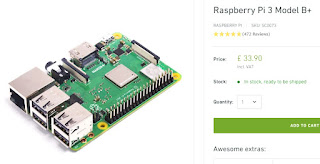
  • A Raspberry Pi 3 (Model B+ will suffice, more memory the better)
     
  • A Pi power supply
     
  • A screen (from a 7" up to whatever size you wish)
     
  • An SD Card and Reader


Once you've got your gear together, simply go to the ClearSkyInstitute website, download the software and Guide, then spend some time watching one of the many installation-guides on YouTube.

Despite what people say, it is not a piece of cake to do if you're a complete newbie to these micro computers! Some of the instructions you'll find online are not 100% accurate and they sometimes make assumptions about your knowledge of the Raspberry Pi. Anyway, I fumbled my way through, so I guess that's some indication of the simplicity of the task. 

Your aim throughout the build, is to get the software running correctly (obviously), find the right resolution for the monitor you'll be using, configuring the settings of the clock once it is working, and then finally, making it automatically boot up and go full-screen.


I happened to have a spare 21" monitor hanging around, so I used that. I chose to use the 1600x960 resolution and it looks real good. In the settings, I inputted my CallSign, LON/LAT, DX Cluster address, etc, etc. The Pi is set to switch the screen on and off at certain times on certain days. 

Just reading through the online HamClock User Guide will give you a good idea of all the information that it can provide and help you to decide whether or not it's a worthwhile addition to your shack.

Personally, I love it!

73, Tom, M7MCQ.

Comment below...