Thursday, 11 May 2023

YAESU'S WIRES-X

YOU'VE NEVER USED IT??
I was roving around the many different Wires-X rooms the other night and during one of my QSO's, a guy asked how I was getting into the room. I told him that I was using Wires-X on my PC in Direct Mode. He told me he had never tried it and probably wouldn't even know how to set it up. He was using a repeater 55 miles away and was having to pump out 50W in order to reach it and it still wasn't perfect.

This really surprised me, so throughout the rest of the evening I asked other people if they'd used Wires-X and it soon became apparent that there's a lot of people out there who use C4FM radios all the time, but they've never explored the Wires-X software and many didn't quite understand what it was or what it had to offer.

So with that in mind, I thought I'd write a small guide to setting it up from a beginners point of view. There's a million people out there who are technical wizards and could embarrass me with my extremely limited knowledge of Wires-X and the Fusion protocol, but what I can offer is a simple "get you going" approach. 

All the information you need is already out there on Yaesu's website but personally, I found it to be really quite fragmented and sometimes a little frustrating, so this guide attempts to pull things together to try to make things easier for the outright beginner.  If I have missed something important (or made errors) and someone notifies me, I will of course amend the post.

Throughout, I will use the FTM-500D as the example radio (because that's what I have), but I'll try to provide details for other modern C4FM rigs. 

If you are able to comfortably reach a Repeater or Gateway, then you might not feel the need to switch to using Wires-X and that's fine. But what if your repeater goes offline? What if your local Gateway shuts down? Your radio will fall silent.  So apart from having a good backup plan, using Wires-X will also broaden your overall understanding of what is going on in the background. 

What I like most about Wires-X is that I can sit in the shack and see all the Fusion Rooms and Nodes around the world on a large PC screen. I can see how busy they are and jump from one to another simply by clicking on them. 

When people are talking, I can clearly see their callsign and when I'm talking, I get to see the Countdown Timer, so I never time-out or cut my conversation short because I'm worried about timing out.

There are many other benefits too, so IMHO it's well worth learning more about it.


WHAT'S INVOLVED??

Well you should know from the get-go that you will need to buy an interface-lead! And that lead is not particularly cheap when purchased from a Yaesu supplier, but there's plenty of used ones around on eBay if you can't afford a new one. If you have an FTM400, you'll already have one!

Other than that, it's all very straightforward...

So the first thing to do is REGISTER on Yaesu's Wires-X website. It's easy to do and takes just a couple of minutes. Once you submit your email address, you'll receive an email back with an ID-REGISTRATION FORM. Click on the link.


Click on AGREE AND PROCEED
 

PLEASE NOTE that you will need your radio's ID for the next step. This can be found inside the menu system of your radio. On the FTM500, it's in MENU-62. Make a note of your own Radio-ID.


You will next be taken to a webpage where you'll need to create a UserName and PassWord. Ideally, the username should not just be your callsign - make something up that's memorable (M7MCQFT991, M7MCQFT100, etc) and make a note of it along with whatever password you choose.

Then enter your CallSign and Radio-ID lower down, followed by all the other personal details asked for - name, address, contact number, etc.


At the bottom of the form, there's a CONFIRMATION button - click it, but be aware that you then need to wait for the pages to reload and then scroll down and click on the SEND button! So many people think they've finished after clicking on the confirmation button and sit there complaining that they've not heard from Yaesu  (yes me lol).

You should quickly receive an email with the subject [WIRES-X web ENG] Your request has been accepted. A couple of working days later, Yaesu will send you a welcome email with the subject [WIRES-X Web] User Account Data Update Completed.

In that email you will see your WebMember User ID and Password, along with some other information which you will need (Node-ID & Room-ID).


PLEASE NOTE If you have more than one C4FM RADIO, you need to create a NEW MEMBER ID & PASSWORD for each radio. Eg, if you have say an FTM500 and an FT5D, you can’t use one log-in for both radios - register each one separately.

You can now install the Wires-X software and USB Driver from the Yaesu Website. At the time of writing, it's up to Version 1.55 (updated to include the new FTM500). After installation, I always restart the PC just to make sure everything has been registered properly.
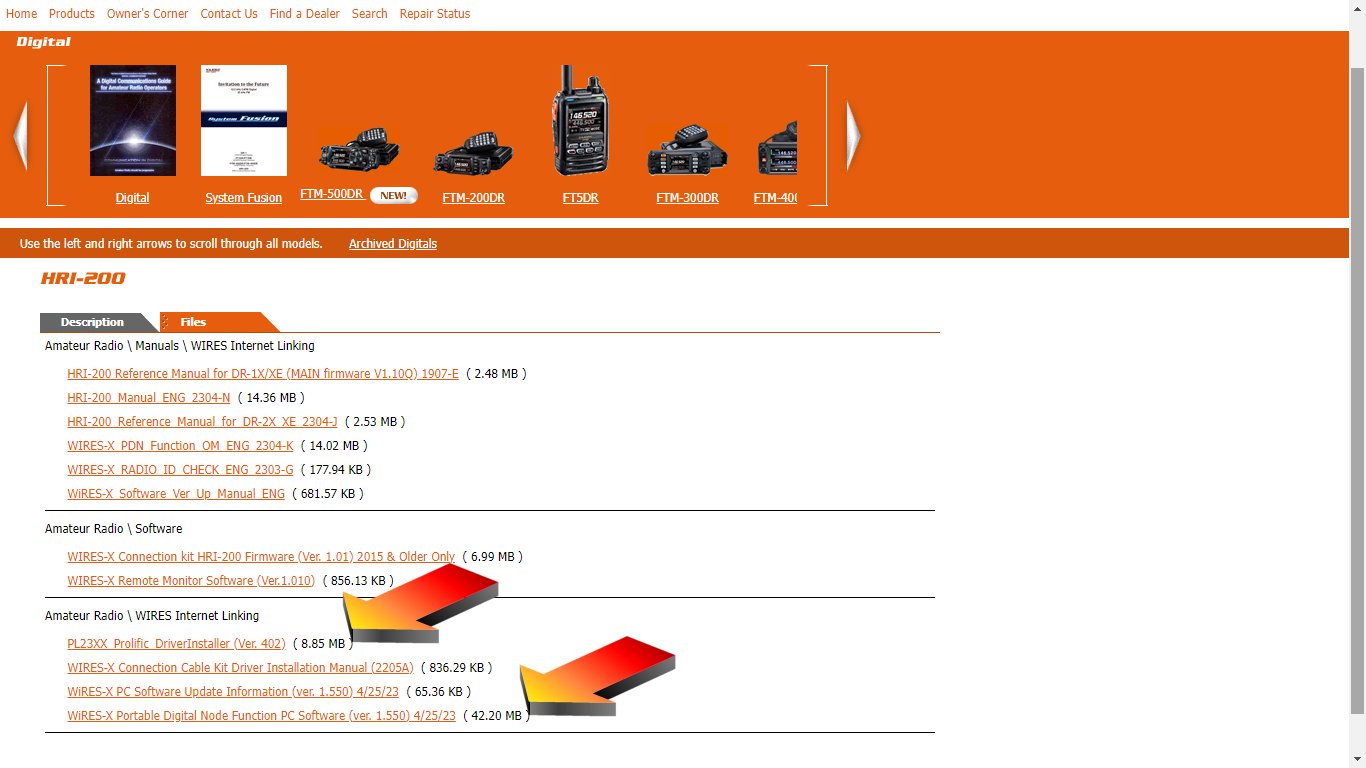

Next job is to make sure that your radio has the very latest firmware. You might not feel like doing this, but believe me, you're in for a world of pain if your firmware isn't current - especially if you have an older radio. Go to the Yaesu Website and download the relevant file for your radio.


Once your'e satisfied that your radio is bang up to date, go ahead and connect it to the PC using the SCU cable appropriate to your rig. With my FTM500, I use an SCU-40 because I run Windows10, but apparently, I'd need the SCU-58 if I was on Windows11. See the list below...


When you connect the USB part of the SCU cable, Windows will recognise it and assign a Com-Port to it. You need to open up Device Manager and look in the Ports section. You should see a Prolific Driver assigned to Com Port #. Make a note of that Com Port number!

The other part of the SCU cable (the Mic/Headphone) goes into your computer's audio sockets. You may or may not have to make some audio adjustments in Windows, but personally, I've never had to do it, so just forget that for now.


Now it's time to start up your radio. You need to place it in Wires-X Mode by holding down a couple of buttons before hitting the Power button. Each radio has it's own procedure for this, so refer to the image below to find out which buttons to press on yours. My FTM500 is highlighted in the image.


Once the radio has started, you should see onscreen that it's in Wires-X mode. Now you can run the Wires-X Software! The first time you run it, there will be a small setup procedure which is very simple. All you need to recall is your NODE-ID and ROOM-ID which you received by email.

Choose the correct port number from the drop-down list
 

Enter your Room-ID and Node-ID
then click ID-ENTRY

Clock OK on the settings screen

The main operating screen will now appear and you must wait a couple of minutes for the Active Node & Active Windows to populate.


Once the windows are populated, you can scroll through all the rooms and even sort them by Name, Activity, City, Country, etc. When you find one that you think you'll use frequently (such as NWFG or CQ-UK), you can right-click and add to your favourites (BookMark).


Alternatively, go straight to CONNECT and join the room.

This will connect you to the chosen room and a new window will open showing you how many connections there are in that room. If someone is talking, you will hear them and see their information.
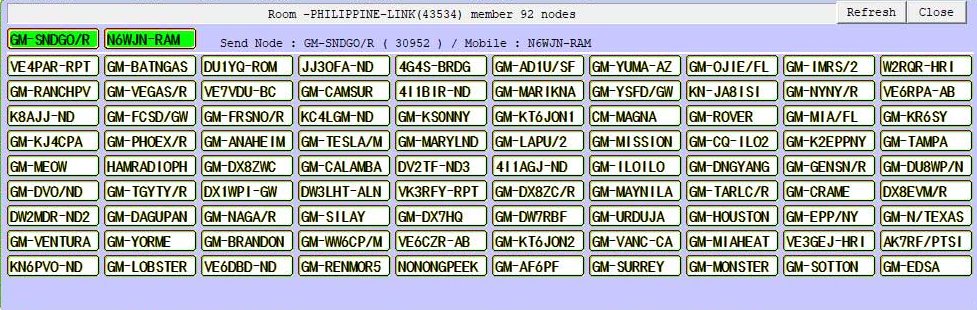

It could be that despite all these connections (see above) there's no one talking. Bear in mind that many of the callsigns on display will be repeaters, etc and not people. Just put a call out saying something like...

"This is Mike Seven Mike Charlie Quebec
listening for any calls"

If you get a response, bingo! If not, choose a different room by right-clicking on it and choosing CONNECT. Please note that you won't be able to connect to another room while someone is speaking in the current room.

Broadly speaking there are Digital Only Rooms, Analogue Only Rooms and Mixed Rooms. With the full SCU cable set attached, you should be able to communicate with them all, but if you only used the USB lead, you will be restricted to Digital Rooms only.

The images below should help explain the Wires-X icons....


There are two ways to use Wires-X with your radio - DIRECT MODE and ACCESS MODE. You can switch between them by pressing a button on your radio. On the FTM500 you simply press For other radios refer to the tables below...


In DIRECT mode, you literally use the radio which is connected to your PC. Talk into the mic as you would normally. No RF will be transmitted - your transceiver is now virtually an Internet Radio. It works superbly and there are (as far as I know) very, very few faults or problems with it. I use this mode almost all the time.

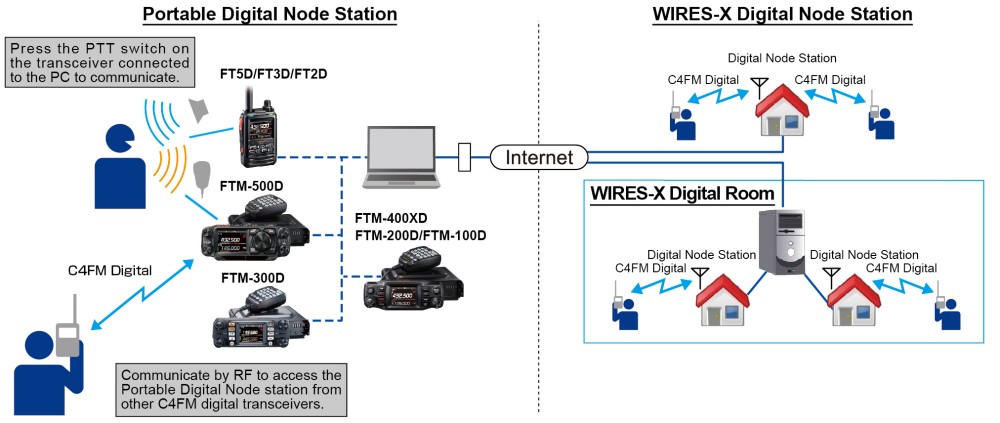
In ACCESS mode, your radio becomes a Node which relays audio from Wires-X to a second radio - usually your handheld (eg FT3D). This way you can walk around your house with your handheld and communicate on Wires-X through your main radio connected to your PC. See the relevant Wires-X guides to learn more about this mode and how to set it up…



I use a Dummy Load on my main radio when in ACCESS mode so my transmissions aren't broadcast further than the perimeter of my property. 

So that's about it for now. I hope that this post helps some people get to grips with the installation/setup procedure and gets you benefiting from Wires-X software. I strongly recommend that you watch the video below - it’s an hour long, but it’s well worth your time  

If you find any errors or glaring omissions or wish to contribute to the post, please let me know. 

73, Tom, M7MCQ


Tuesday, 9 May 2023

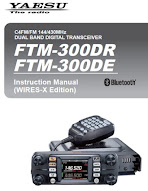
YAESU FTM500DE Mini Review

YAESU'S FLAGSHIP FUSION MOBILE

Yaesu's new FlagShip C4FM Mobile is a 50W C4FM/FM 144/430MHz Dual Band Digital Transceiver. 


I'll be honest - I had no intention of buying this radio when it was announced in February 2023 - I was perfectly happy with my FTM300. The 300 is a superb Fusion radio and has more C4FM capabilities than the discontinued 400 and even the "Flagship Fusion" 991A.

But in my little shack I had two Fusion rigs - the 300 and the FTM7250 (the latter was removed from my truck because I just never used it mobile) and it bothered me that it was one too many. I decided I needed to sell the 7250 but then I figured "If you're going down to a single radio, it might as well be the very latest - the 500". So I sold the older rigs and ordered the new one.

PRICE ðŸ˜® Everyone seems to be obsessed with the price of the 500 as though it’s the only expensive radio in the world! Well let me tell you - they’re all expensive!! Here in the UK they’re just over £600 which is no different to the cost of the aging ID-5100. The big difference is the FTM-500 has the very latest and greatest technology inside it. 

It doesn't offer a massive amount more than the FTM300, because as I've said previously, the 300 really is a very good radio and it offers superb value for money at less than £400.


The first thing that grabs you about the 500 is the "big" VFO which I do quite like. In all the marketing images, you are led to believe that this new radio is bigger all over, but the truth is - the main body is virtually the same. The screen is bigger on the 500 and is a "touch" screen and the (detachable) front panel is taller and much deeper to accommodate the piped speaker output. And it's a really good output too - no need for an external speaker with this baby! Click HERE to review what's new from Yaesu.


The screen is a joy! It’s hi-res and has accurate touch functionality. I'm aware that some people think you need a huge screen to be able to use a radio, but then the same people whip out text messages on their phones with absolute ease!


Thankfully, some bright spark came up with the idea of providing a TILT function which allows you to tilt the head unit (and therefore the screen) upwards for easy viewing. Brilliant!


Someone said to me that the 500 has lots more physical buttons than the 300, but in reality, the 500 only has 1 extra button. Pressing the FUNC button brings up a quick-menu which can be altered to suit your own personal preferences. I altered mine so that I have quick access to the Clock/Timer display, as seen below…


The user-interface (as far as I'm concerned) has become very Icom-like and that's a great thing! There's a lot of "Press what you want to change". So if you want to input a new frequency, hold your finger on the displayed frequency and a keypad will open up to allow you to type in the figure you want. Simple and effective. You can also press the VFO dial to do the same and you can even do it from the DTMF Mic too.

Want to change Mode? Just press the Mode icon onscreen! Want to change from VFO to MEM? Yeh, you guessed it - just press VFO onscreen. You get the picture.

On the left you have two small dials which control the Volume and Squelch of the receivers. On the opposite side you have another two dials - the top one is the main FUNCtion dial for controlling menus, etc and the bottom one is for controlling the sub-vfo. Obviously, the great big dial controls the main VFO.

Having two independent receivers means that you can, of course, monitor and listen to two independent signals. That's VHF/VHF, VHF/UHF, VHF/C4FM, UHF/UHF, UHF/C4FM, AM/VHF. AM/UHF, AM/C4FM, AM/AM, C4FM/C4FM.

That's a lot of options! And one thing that I particularly like is the ability to force AM mode! What do I mean?? Well some radios have AM mode purely for the AirBand and as soon as you move away from that specific band, it switches over to FM.

With the FTM-500 you can force it to switch to AM receive. An example of when you might want to do this is the Marine Band. Normally, you'd choose say 156MHz and be stuck in FM mode, but with this radio you can go to the RX MODE menu and change it to AM, then save the frequency/mode to a Memory Slot and it will store that configuration, which is great if you want to include it in a Scan. Needless to say, AM is RX only!

Note : there is no Crossband Repeat function in C4FM! Analogue yes, but not digital - the C4FM protocol prohibits it.

PGM is another great facility. With it, you can choose up to 5 frequencies and it will present a screen with a 5-section BandScope. You rotate the dial to choose one of these frequencies to actually use and then watch the bandscope for any signs of activities on the other four frequencies.

So you could be listening to an interesting C4FM QSO on CQ-UK through your HotSpot(1), while you wait for your buddy to come onto the local C4FM NWFG repeater(2), while keeping an eye out for activity on 2M(3) and 70cm(4) whilst watching for Marine life 😂 on 156MHz(5).

Additionally, you can press the SCAN button to make the radio SCAN all five frequencies and stop on any one of them when there's activity. There's all sorts of ways of using it I guess.

MAG Memory Auto Grouping - a feature which allows you to scan through all the memories by frequency group - scan all the VHF or the UHF or the AIR or C4FM stored memories.  There are 1104 memories available!

All these things are real easy to figure out - it all feels quite intuitive, like an Icom. I think it's what Yaesu refer to as their latest E2O (Easy To Operate) system. Up to now, I haven't had to refer to the Manual at all. It's intuitive enough to figure out by simply "having a go".

Sadly, there is no software available for programming the memories at the time of writing. This is a bit disappointing but I've heard that Yaesu may be releasing one soon. In the meantime, RT SYSTEMS have been a little more pro-active and have got their software ready and available for download.

Personally, I don't feel the urge to buy any software for the FTM-500 because it's pretty darned easy to input memories by hand. You simply set the frequency, the mode, the repeater shift and tone (where required) and then press the MW button. Done! If I had hundreds of frequencies to store, I'd consider the RTS software, but I don't.

Even if I was to store all the local Repeaters and local AirBand channels, it would still only amount about 30 memories, so it's not worth bothering with software for me.

AESS - Acoustic Enhanced Speaker System that's Yaesu's method of controlling the way that the FTM500 sounds. The radio has a 6W speaker in the front panel and a 3W speaker in the base unit. You can play with the volume and tone balance between the front and rear to reach a ‘sound’ which best suits your hearing and audio preferences. At factory settings I'd say that overall, the audio is a little "thin".

Using the AESS system, you can adjust the equalizer so that one (or both) speakers have more bass (other options are available including phase adjustment) but you need to be aware that using this system will effectively mute the sub-vfo's audio. Yes, you heard right - the AESS feature gives you something but also takes something away! The fact is, there are only two audio paths and the AESS system wants to use both of them to allow you to tailor the sound of the Main VFO.

Now some people might start kicking off about that and I know of one guy who actually sent his radio back to the store because he actually thought his radio was broken 😂.  It doesn't bother me too much. The fact is, you cannot realistically listen to two signals at the same time. I'd prefer to have a more comfortable and pleasing audio than being able to listen to dual conversations.

Having said that, some might think it quite ridiculous that a Dual Receiver can't dual-receive. I get that. But this little alleged "flaw" only effects you if you seriously want to listen to the audio of both receivers at the same time. Both receivers obviously continue to function with AESS active, but you have to switch between VFO-A and VFO-B to hear them.

I'm guessing that in a mobile situation, no one's going to give a rat's ass about audio fidelity when you're blasting down the highway at 70mph. You'll not need AESS and will be perfectly happy with the FTM500's clear, bright and punchy sound (not to mention the 9W output). AESS is an option at the end of the day - switch it on when it suits you, switch it off when it doesn't.

POWER OUTPUT of the FTM-500D is 50W/25W/5W which I find quite annoying. As a UK Foundation License holder, I am limited to 10W which means that on this radio I am actually limited to 5W - no more, no less. This isn't unique to the 500 of course - it's the same on many other Yaesu radios.

I did once write to Yaesu UK about it and they told me that I could send the radio to their workshops and they would probably be able to adjust the lowest setting to 10W. I didn't bother because I didn't want to lose the 5W setting too 😡

Is it really so difficult to make these radios with more output settings such as 50/25/10/5/1W?? Or even variable from 1 to 50 on a dial?? 

Luckily, I'm strictly a QRP man and 5W is fine by me 90% of the time. In fact, this radio will spend the vast majority of its life in my shack running Wires-X in Direct Mode with 0W output. Only a few times a year will I take it out in the field and want to use my 10W limit.

SDCARD - Like the FTM300, the 500 can accommodate a 32Gb micro sdcard and on there you can back up all your settings and memories. The radio's built-in QSO RECORDER uses the sdcard to store all your recordings. You can record both RX and TX which is a fabulous feature that I've enjoyed on my Icoms for a few years now. 

C4FM has reached a very mature stage now and it's well implemented in the FTM500 with the ability to monitor two C4FM signals in Dual Receive. When it comes to Wires-X though, I was initially very annoyed to see that the 500 uses a new computer interface cable called the SCU-58 at a cost of £70 😡😡😡

Before buying one, I decided to try my SCU-20 and boom, it worked fine 😃. I think the SCU-58 might only be marginally different in that it's guaranteed to be compatible with Windows11. Well I use Win10 so that doesn't matter to me. I have heard rumours that the SCU-20 will also work with Windows 11, so it's worth trying your old SCU-20 before forking out £70.  To me, these C4FM radios should all come with computer leads included, like they used to years ago with the FTM400!

The only bugbear that I have with using Wires-X with a Yaesu radio is that you are locked into digital mode and cannot use the radio for anything else. For example, right now I'm connected to Wires-X on my PC using PDN DIRECT mode and there's no way for me to also monitor eg the 2M Call frequency 😩 Yes, I can switch back to analogue, but that's not the same.

BLUETOOTH is built into the 500 and it works very well. I was able to connect the Yaesu BT-10 headset without any issues at all and even my Apple AirPod Pros worked. RX and TX.

APRS is available on the FTM500 and the built-in 66-ch GPS provides the positional data. You are also able to connect an external GPS. I have not really experimented with APRS yet, so I cannot provide any useful information on how well it's implemented here. What I can tell you is that APRS occupies the biggest part of the radio's menu system by far! 

A point of interest is that the Yaesu's built-in TNC's are not accessible externally - not on this radio, nor on the 300 or even the 400. I don't know why Yaesu lock down their TNC when others like Kenwood (my D74 for example) provide external access via cable and bluetooth.

SSM-85D The FTM500D is supplied with the latest programmable DTMF microphone which fits really well in the hand and has a host of useful features which make the radio even easier to operate. I think this is my favourite mic of all time. It looks good and functions well. Audio reports have been very complimentary so far. 

Is some of this sounding a tad negative??

It's certainly not meant to be! I absolutely love this new radio and I'm so very pleased that I upgraded from the already fabulous 300 (which IMHO was an upgrade from my old 400).

So what are the actual differences between the 500, 400 and 300? Let's take a look.

Bear in mind that the 400 design is now about 10 years old and the main reason for its popularity is its screen size. It has the largest screen of all Yaesu's fusion mobiles (about an inch bigger than the 500) and suit's those people who's eyesight is perhaps not what it used to be. The 300 is relatively new and offers the biggest bang for the buck but it has a much smaller non-touch screen.

FTM500 benefits over 300...

  1. AESS
  2. Two Mic-input locations
  3. Tilting Head
  4. Larger knobs with click-detents
  5. Customisable Favourite List
  6. Larger, Higher-Res Screen
  7. Touch Screen
  8. Touch & Go function
  9. Search & Go Function
  10. Onscreen Function-Select

FTM500 benefits over 400...

  1. C4FM available on both VFOs
  2. AESS
  3. E2OV4
  4. Built-in BlueTooth
  5. QSO Recorder
  6. Two Mic-input locations
  7. Latest programmable DTMF Mic
  8. Two Speaker Output Jacks (A&B) on Body
  9. Headphone Socket on Head Unit
  10. Speakers in both head and body
  11. Tilting Head
  12. Head can be mounted to body
  13. Larger knobs with click-detents
  14. Customisable Favourite List
  15. 16-Character Long Alpha-Tags
  16. Ability to store more parameters into memories
  17. MAG Function
  18. PMG Function
  19. Touch & Go function
  20. Search & Go Function
 

So should you sell your 300/400 and upgrade to a 500? Not if you're happy with what you've got. If your current radio does everything you want, then it's a bit daft to change it, but if you are buying your first Fusion mobile and want the absolute best available, then you're going to need the FTM-500D.

Yes it's expensive, but so too is every other brand new top-of-the-range radio. The launch-price will probably drop in a few months, so it might make more sense to upgrade then - especially if you've got one of the first 400's which is 'knocking on a bit'.

If my FTM300 had been my only Fusion radio, I would definitely have kept it, but I also had a redundant FTM7250, so selling them both meant that I didn't have much to pay in order to move up to the 500.

I'm very pleased with my purchase and look forward to many years of service from it. The Advanced Manual has only just been posted by Yaesu USA (there's absolutely nothing on the UK site at the time of writing), so there's a lot more to learn about this radio, so please consider this review as a "First Look". I will post updates soon.


Please leave a comment at the bottom of the page.

73, Tom, M7MCQ                                                                                                        ==============

>>FTM-500 VIDEOS ON YOUTUBE<<


UPDATE 11 May 2023

Ian (G0GVS) asked if the large VFO dial might interfere with the view of controls when mounted in a car over to one side. Here's some images showing that all dials remain visible, but one button would be hidden by the VFO (but still easy to reach).


Yaesu offer a rotating RAM-BALL style mount
to make it easy to adjust the view of the FTM500

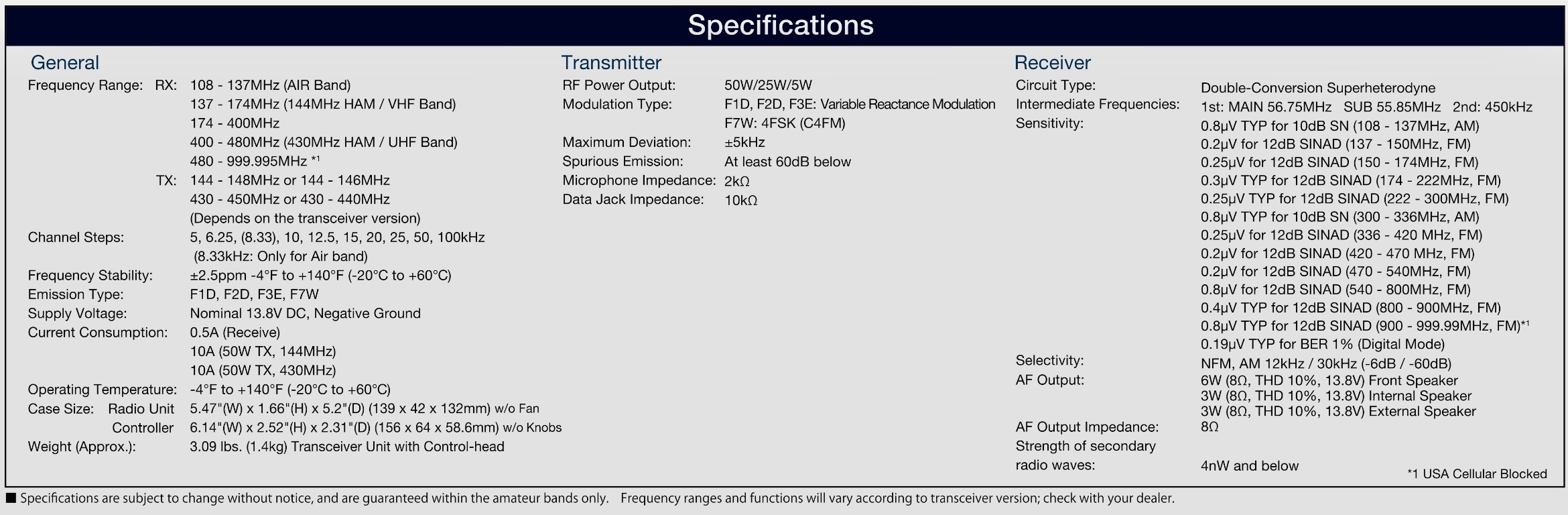
SPECIFICATION

<Main Features>
- Equipped with front speaker, clear sound quality and expansive volume, AESS dual speaker system
- Overall output 9W (3W: main unit, 6W: front panel) High sound quality - Loud speaker
- New dual mobile operation The latest operating system E2O-IV (Easy to Operate-IV) with touch & go/search & go functions
・Supports C4FM digital, analog FM communication, and AM (airband reception) with excellent communication quality
・Simultaneous reception of 2 waves , C4FM/C4FM digital dual reception (digital D/D) supported
・AMS (Automatic Mode Select): FM-friendly digital with communication mode automatic selection function
・Easy and comfortable group operation with digital group ID (DG-ID)
・2.4 Inch high-definition full-color touch panel display
・Swing head mechanism that can change the angle of the control head upward by 20 degrees
・Optional spherical joint type mount kit that can change the angle of the control head up and down / left and right (SJMK-500)
・Frequently used CFL (customized function list) for easy function checking, setting changes, and customization -
Memory auto grouping (MAG) function that automatically groups memory channels by band -
VFO band skip function that displays only the bands to be used
・Memory channel VFO transfer function to move memory channel information to VFO with one touch
・One-touch scope function that instantly switches between scope operation and dual reception operation
・High-speed spectrum scope function
・16 characters (8 full-width characters) kanji supported, large capacity 1104 channel memory with tags installed
・Built-in high-precision GPS receiver, real-time GPS data Communication APRS compatible
Bluetooth wireless operation (optional headset SSM-BT10 required)
WIRES-X portable digital node function compatible
Equipped with a microSD card slot that can save voice data and memory backup
Stable 50W high output Guaranteed FACC (Funnel Air-Convection Conductor) cooling system Control
head separate operation supported


<Main specifications>
・Transmission frequency range: 144-146MHz, 430-440MHz (C4FM digital / analog FM)
・Reception frequency range:
 108-137MHz (Air Band)
 137-174MHz (144MHz HAM/VHF Band)
 174-400MHz
 400 to 480MHz (430MHz HAM/UHF Band)
 480 to 999.995MHz
Reception method: Double conversion superheterodyne method
Radio wave type: F1D, F2D, F3E, F7W
Transmission power:
 FTM-500D (50W type) 50W/25W/5W
 FTM-500DS (20W type) 20W/10W/1W
External dimensions (W x H x D):
 Body 139 x 42 x 132 mm (excluding protrusions and fans)
 Control head 156 x 64 x 58.6 mm (excluding protrusions) )
・Weight: Approx. 1.4 kg (body, control head)

E2O V4

108-999.995MHz

AM Reception

6W spkr front 3W main unit

PMG func

MAG 


Wednesday, 26 April 2023

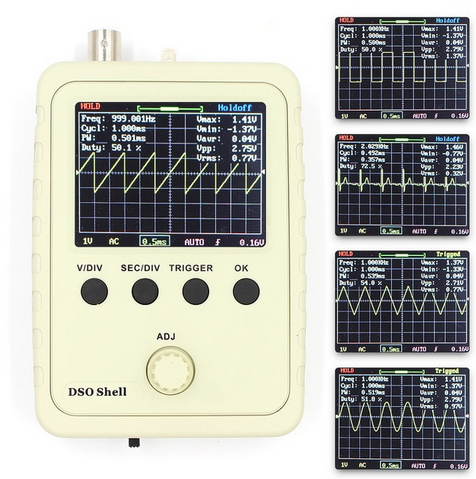
DSO SHELL OSCILLOSCOPE

HAND-HELD OSCILLOSCOPE DSO-150

I recently bought a QRP-LABS QCX kit and while I was watching a Trouble-Shooting Video by Hans G0UPL, I noticed that he was using a hand-held oscilloscope. It looked like a very useful little tool and would be an ideal addition to the shack - especially considering my enjoyment of (simple) kit-building.

I thought they might be too expensive but they are, in fact, quite cheap. You can buy them as a kit or fully assembled - I chose the latter and it cost me £40 on eBay. If you go down the route of buying it in kit-form, you can expect to pay around £20 but you will have to do some SMD component soldering 😲  I also got a DC 5V to DC 9V USB power lead - another handy shack accessory.

The oscilloscope arrived the very next day in a useful box for storage. I'll probably find an alternative storage solution, but for now it's fine. The unit seems pretty well constructed and the controls work smoothly.


The 2.4" screen is full colour and while not the highest resolution, it's good enough for light use. The instructions are sparse, so I'm guessing the manufacturer is assuming the operator will have a basic knowledge of oscilloscopes. No matter anyway, since there are numerous videos on YouTube to help you out. One such video can be found >>>here<<< An excellent manual can be found >>>here<<<

In the case of building or trouble-shooting the QCX, Hans' video makes light work of testing with the DSO-150.  I'm one of those "in at the deep end" kind of guys, so I'm expecting to learn as I go along. I'll probably blow something up within seconds of using it 😂

Anyway, the main point of posting this is to make more people aware of the DSO-150's existence! I personally had no idea that you could buy such a compact oscilloscope and certainly not for as little as £20. I'm sure it's very basic in its functionality compared to a 'proper' scope and not even 100% accurate in its measurements, but for such a low asking price, it's gotta be worth having around the shack.

I've been building up my test gear and I've got a DVM, a VNA, a Signal Generator and now an Oscilloscope in my toolbox.


I'll update this page as I learn more about the usefulness (or otherwise) of this device.

Please leave a comment below. 

73, Tom, M7MCQ
K7RAW NOODLE-TENNA

SOMETHING FOR THE WEEKEND SIR?

One of the reasons I like Ham Radio so much is the experimentation side - in particular, antennas. I'm only an M7 Foundation License holder with very limited knowledge of antenna theory, so it's always nice when you find someone who's come up with a nice little project that is simple and easy to construct and play with.

One such person is Rudi (K7RAW), who came up with a super simple weekend project based on those light foam Pool Noodles. Very simple to make and lots of scope to make variants. Watch the video and give it a go - it's fun!

This is a BRAND NEW type of HF antenna for those with extremely limited space to setup a conventional antenna. It is derived from the Slinky Antenna but with a few upgrades. It is less than 1/5th the length of a normal dipole, yet performs similarly. No ground, radials, counterpoise, tuner or BalUn required. Just a coax feedline with a Mix 31 common-mode ferrite choke at the antenna end.

It uses widely available ordinary parts which cost less than $25. It is easily scalable for other HF bands and can be used in vertical or horizontal mounting, including with other NoodleTennas on the same mast, acting like a fan dipole.

On 10m the bandwidth is about 600 KHz below 1.5 and about 1 MHz below 2.0 I've made many contacts with it, getting good signal reports. You can build one in about 2-3 hours. MATERIALS: (scale the lengths for other HF bands) 3" diameter (large type) 50" long pool noodle 40" of 3/4" schedule 1120 (thin-wall) PVC pipe 3/4" PVC "T" 3/4" PVC elbow 3/4" flat-top plug (smooth) 2" long 3/4" PVC stub ("T" to elbow) 6" long 3/4" PVC stub (for mast) 2' of coax (RG-8X, LMR240 or RFC240) with female BNC or UHF connector https://www.ebay.com/itm/133481890997... 28' of 18 gauge stranded hookup wire 4 10" cable ties (2 at center, 2 at ends, 1 at bottom of the noodle) TOOLS: 1/8" drill bit for center hole in PVC pipe 1/2" drill bit for BNC connector threads thru flat cap 7/8" wood bit (spade blade type) for hollowing out inside of cap OPTIONS: 6 Snap-on ferrite beads (Mix 31) for common mode suppression on antenna end of coax https://www.jpmsupply.com/Snap-It-Cor... 3/4-5 TPI tap for threading 1/2" x 3/8" PVC reducer to fit painter poles https://www.ebay.com/itm/254642664421 Telescopic camlock mast (up to 31 feet high) https://docadone.com/products/docapol... Tripod that fits up to 2" diameter mast https://www.ebay.com/itm/363482179344 Guy wire ring, tie-downs, adjusters & ground spikes https://www.ebay.com/itm/114891585326 ASSEMBLY: 1) Mark the pool noodle every 1 inch with a Sharpie 2) Cut pool noodle into 2 sections, each 20" long 3) Drill 1/8" diameter hole at center of PVC pipe thru one side only 4) Slide both noodle sections onto PVC pipe leaving a 1" gap at hole 5) Divide the hookup wire into 2 pieces, each one 14' long 6) Thread both wires into hole and pull both to one end of PVC pipe 7) Strip coax back 1", solder each to coax and cover core and braid each with heat shrink 8) Drill PVC plug to fit coax connector (1/2" thru hole and 7/8" counterbore inside of cap to make thru hole wall about 1/8" thick) 9) Thread coax connector into one end of PVC "T" and out the side port 10) Insert 6" PVC stub to other end of PVC "T" 11) Attach 2" stub to elbow 12) Thread coax connector thru stub/elbow combination and attach to PVC "T" side port 13) Insert connector from inside of PVC plug and secure with its ring nut to flat outside 14) Insert PVC cap with connector onto PVC elbow facing away from noodle 15) Pull wires so that coax pulls all the PVC fittings can be joined together snugly 16) Slide both noodle sections together at hole in pipe 17) Pull wires perpendicular to noodle in opposite directions 18) Bring the up each wire onto the inner end of each noodle 19) Attach cable tie to each at inner ends of noodles to hold wire in place while winding helix 20) Wind one noodle with wire so that helix has even twist with 1" spacing between each turn 21) Wind other noodle with helix in the SAME WINDING DIRECTION as the other noodle 22) Tie off each wire at the outer ends of the noodles with cable ties 23) Adjust cable ties for for wire support at each end of each noodle with snugness 24) Trim off excess tails of cable ties 25) Connect to rig with good quality coax with at least 6 snap-on mix 43 ferrites at BNC-M end 26) Attach to mast at the 6" PVC stub 27) Raise the antenna and test with antenna analyzer 28) Trim both wires to the EXACT SAME # of turns until in resonance at the desired center frequency